
Generating the first draft is the fun part. The part that eats a designer’s week is everything after: “Can we try it in green?” “Change the date on every slide.” “Can we also get this as an Instagram post?” None of it is hard. All of it takes time you can’t really bill for.
That’s the job Canva’s newest model is built for. On October 29, Canva introduced Canva Brush, a vision-language model for design built by Canva Research. Canva says Brush “sees your design, understands how it’s put together, and makes the changes you ask for, from a single line of copy to every slide in a deck.” (Canva Newsroom)
Last week we covered Canva Craft, Canva’s new image model. Canva puts the two together like this: “Craft generates the image, and Brush refines the design around it.” Here’s what’s new, who gets it, and how we’d fit it into client work.
What’s actually new
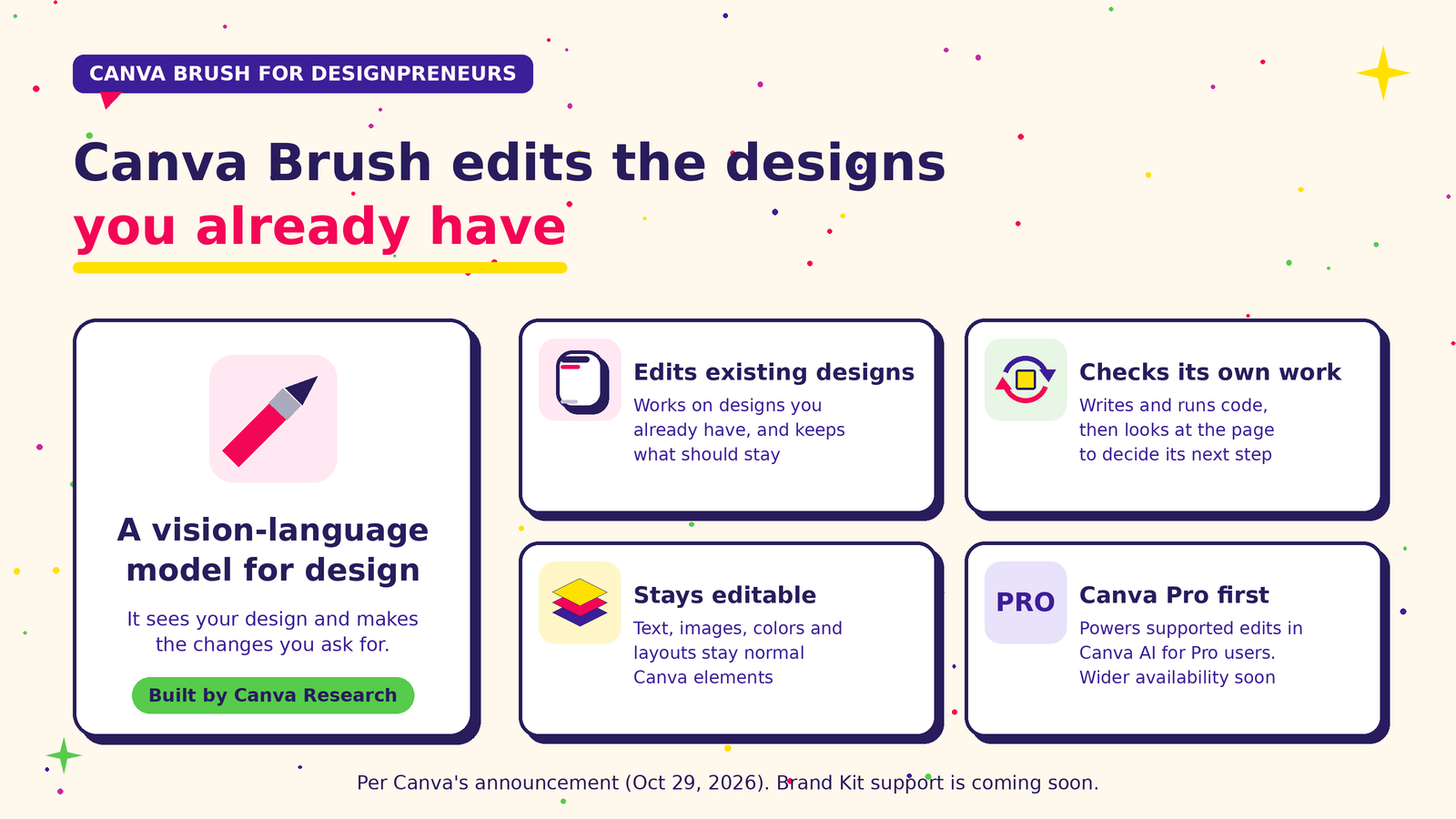
Everything in this section comes from Canva’s announcement.
- It edits, it doesn’t just generate. Brush is built to work on designs you already have. It has to work out what you want changed, how the design is put together, and what should stay exactly as it is.
- It checks its own work. Behind the scenes, Brush runs an agentic loop: it writes and runs code to adjust design elements, then looks at the page to decide its next step.
- Everything stays editable. Text, images, colors and layouts remain normal Canva elements you can move, change or delete by hand.
- Faster and cheaper than before (by Canva’s numbers). Canva says Brush is up to 69% faster on general design editing tasks and costs 46% less per edit than its previous design agent. In Canva’s internal testing, it matched or beat the old setup on most editing tasks, especially restyling and adapting designs to new formats.
- Who gets it: Brush powers supported design edits in Canva AI for Canva Pro subscribers, with wider availability “coming soon.”
Coming soon (not live yet): Brand Kit support, referencing attachments, and better handling of image-heavy layouts. Don’t promise clients brand-locked AI edits until Brand Kit support ships.
Where Brush fits for a designpreneur
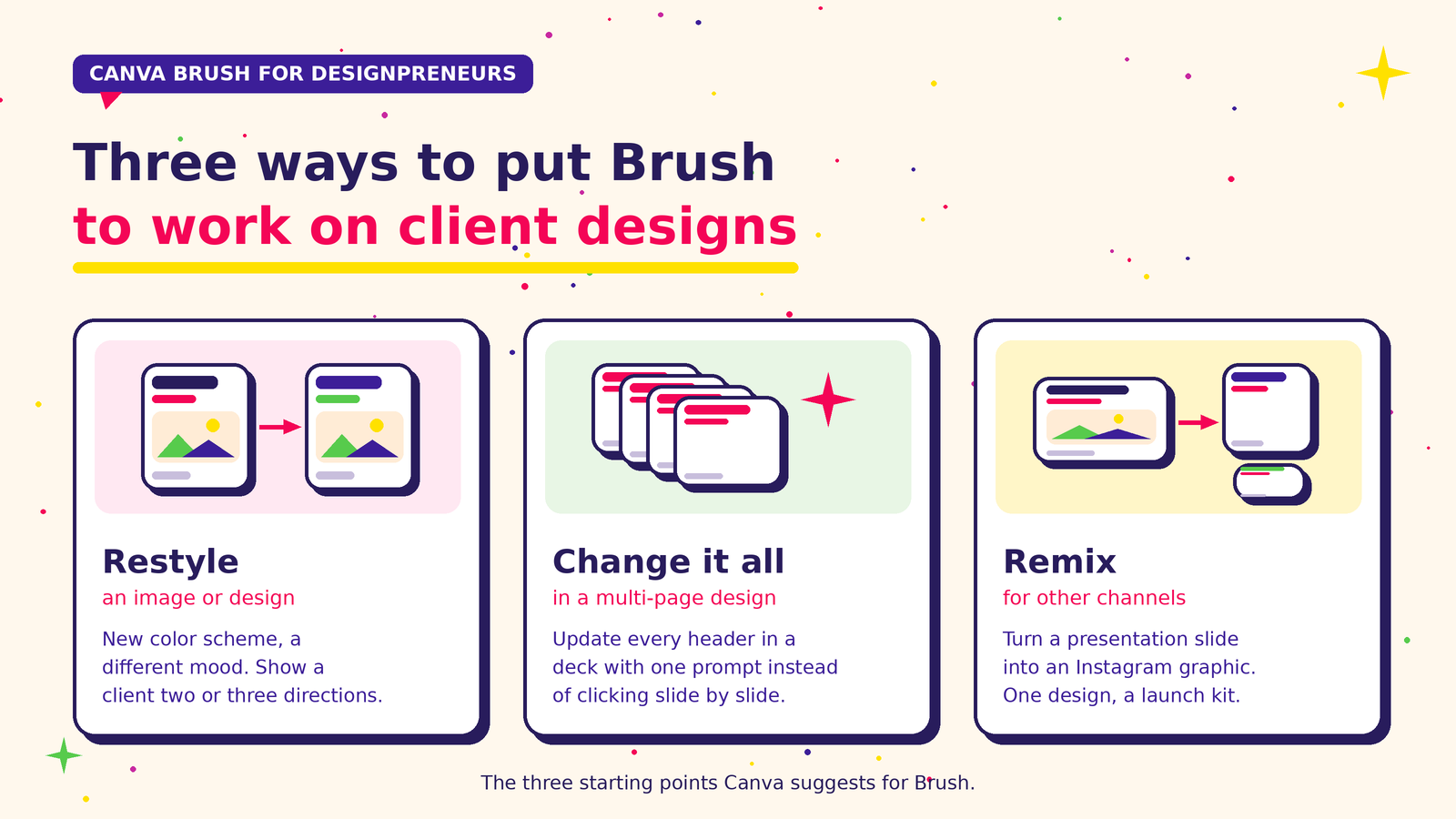
Canva suggests three ways to start. Each one maps to a task we do every week:
- Restyle an image or design. Try a new color scheme, change the weather in a photo, or describe a different mood. Good for showing a client two or three directions without rebuilding anything.
- Change a whole multi-page design at once. Update every header in a deck with one prompt instead of clicking slide by slide. Think rate cards, proposals, event decks, and monthly reports.
- Remix one asset for other channels. Turn a presentation slide into an Instagram graphic, for example. One approved design can become a whole launch kit.
For us, restyling comes first. It’s the use we’re experimenting with most right now.
How to try Canva Brush: a 6-step workflow
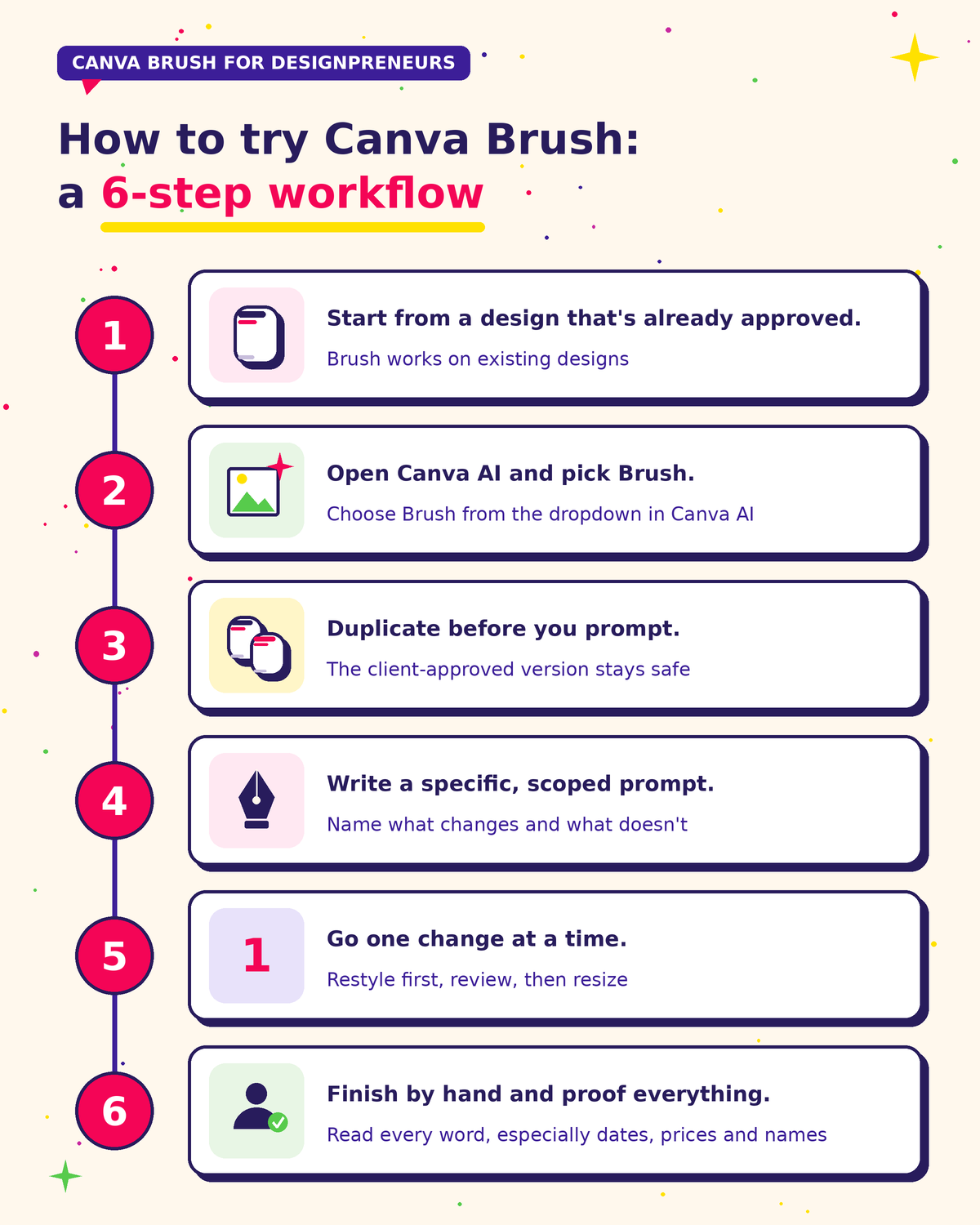
1. Start from a design that’s already approved. Brush works on existing designs, so open one in the Canva editor. Canva’s help guide notes the AI “works best on less complex layouts,” so start with a simple one. (Canva Help Center)
2. Open Canva AI and pick Brush. Select the Canva AI tab in the editor sidebar. You can also start from Canva AI and attach or link the design there. Then choose Brush from the dropdown in Canva AI so it handles the whole editing session.
3. Duplicate before you prompt. Make a copy of the design (or the page) first. The client-approved version stays safe, and you can compare before and after side by side.
4. Write a specific, scoped prompt. Name what changes and what doesn’t. For example: “Change the event date on every page to November 21. Don’t change fonts, colors or images.” Canva’s help guide warns that open-ended prompts like “make it better” “may lead to broader changes than you intended.”
5. Go one change at a time. Canva also recommends breaking big requests into smaller steps. Restyle first, review, then resize. If something goes wrong, undo (Ctrl+Z or Cmd+Z) and try a clearer prompt.
6. Finish by hand and proof everything. Because everything stays editable, take over in the editor for the final pass: check the client’s real logo, brand fonts and colors, and read every word, especially dates, prices and names.
We’re still experimenting with Brush ourselves, and so far the biggest change is speed: restyles and revisions that used to take a while now come together much quicker.
A few honest cautions
- It’s a first version. Canva calls this “the first version of Brush” and says image-heavy layouts are still being improved.
- No Brand Kit support yet. Until it ships, check every Brush edit against the client’s Brand Kit yourself. Our ProSuite and Brand Kit guide covers setting one up.
- Check your AI usage. Canva’s help page links to its guide on how Canva AI usage works. Check your plan before you build a client workflow around heavy use.
- The speed numbers are Canva’s. “Up to 69% faster” comes from Canva’s own comparison with its previous agent, not an independent test.
How this plugs into your Designpreneurs toolkit
In The Designpreneur Toolkit, we said the goal is a connected workflow, not more tools. Brush covers the step most toolkits skip: revisions and repurposing. Generate with Craft, split images into layers with Magic Layers, then use Brush to restyle, update and adapt the approved design for every channel. If a design is headed for print, VecSynIQ can turn the raster artwork into print-ready vectors.
One thing we haven’t changed is our client quotes. Brush makes the work faster, but the quote stays the same.
Try it this week: take one approved client design, duplicate it, and ask Brush to turn it into two other formats. Time it against doing it by hand.
Need a hand? Contact us for your Canva design projects or to get your team set up with Canva AI.
Sources
- Canva Newsroom, “Introducing Canva Brush, a vision-language model for design” (Oct 29, 2026): https://www.canva.com/newsroom/news/canva-brush/
- Canva Newsroom, Canva Research Team author page (publication date): https://www.canva.com/newsroom/news/author/canva-research/
- Canva Help Center, “Use Canva AI to refine designs through conversation”: https://www.canva.com/help/canva-design-assistant/
- Internal links: https://designpreneurs.com/canva-craft-image-model-designpreneurs/, https://designpreneurs.com/canva-prosuite-affinity-brand-kit-designpreneurs/, https://designpreneurs.com/designpreneur-toolkit-create-automate-grow/, https://designpreneurs.com/vecsyniq-print-ready-vectors-for-designers/
