
Every designer who runs a business knows the AI image trap. The picture looks great until you notice the warped text on the sign, the logo floating in the wrong spot, or the fact that you can’t move anything without starting over. So you end up rebuilding half of it by hand, and the “time saver” quietly eats your afternoon.
Canva’s newest launch goes straight at that problem. Last week Canva introduced Canva Craft, its first image generation model built and trained in-house by Canva Research. It’s available to all Canva users in Dream Lab, and it’s now the default image model in Dream Lab. (Canva Newsroom)
We’d use it for both client social posts and our own app promos. Below: what’s new, how it compares with other image models, and a 6-step workflow. For Canva’s earlier AI image tools, see Revolutionizing Image Creation with Canva AI.
What’s actually new
All of these come from Canva’s announcement, except the default-model note, which is what we see in our own Canva account.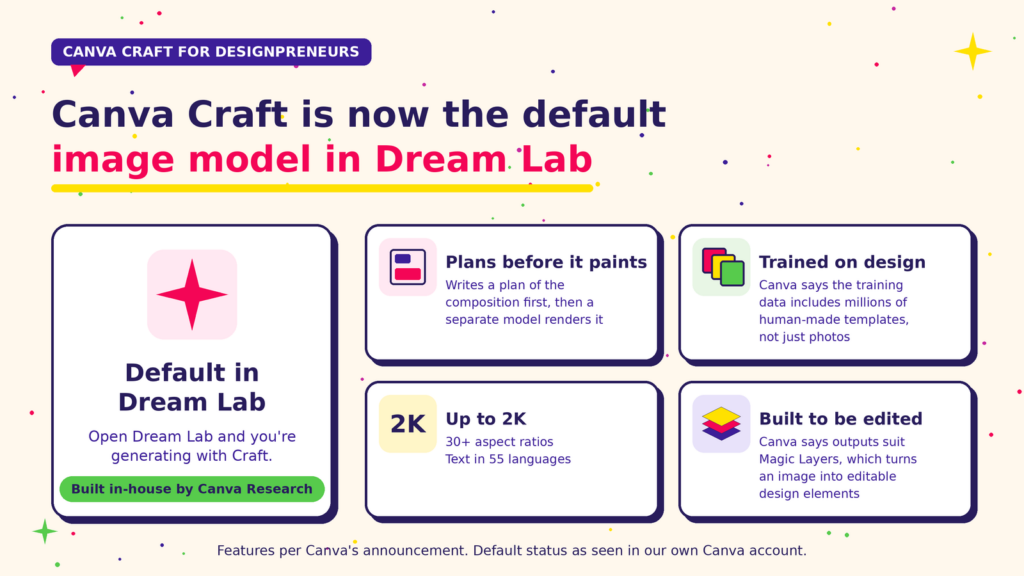
- It’s the default in Dream Lab. Open Dream Lab and you’re generating with Craft, with no model hunting.
- It plans before it paints. Craft first writes a plan of the composition: which elements appear, where they sit, their size, the visual hierarchy, and any text. A separate model then renders that plan. Canva says this gives more legible text and more precise placement.
- It was trained on design, not just photos. Canva says the training data includes millions of human-made templates (posters, social posts, presentations, infographics, menus), and its professional designers helped evaluate it.
- Up to 2K, 30+ aspect ratios, 55 text languages. Prompt in any language; Craft can render text in 55.
- Built to be edited. Canva says Craft’s outputs suit Magic Layers, which turns a generated image into editable design elements.
Coming soon (not live yet): faster Craft-fast and Craft-ultrafast variants, Craft in the Canva MCP Server, and more advanced editing and reference-image features. Don’t plan client work around those until they ship.
How Craft compares to other image models
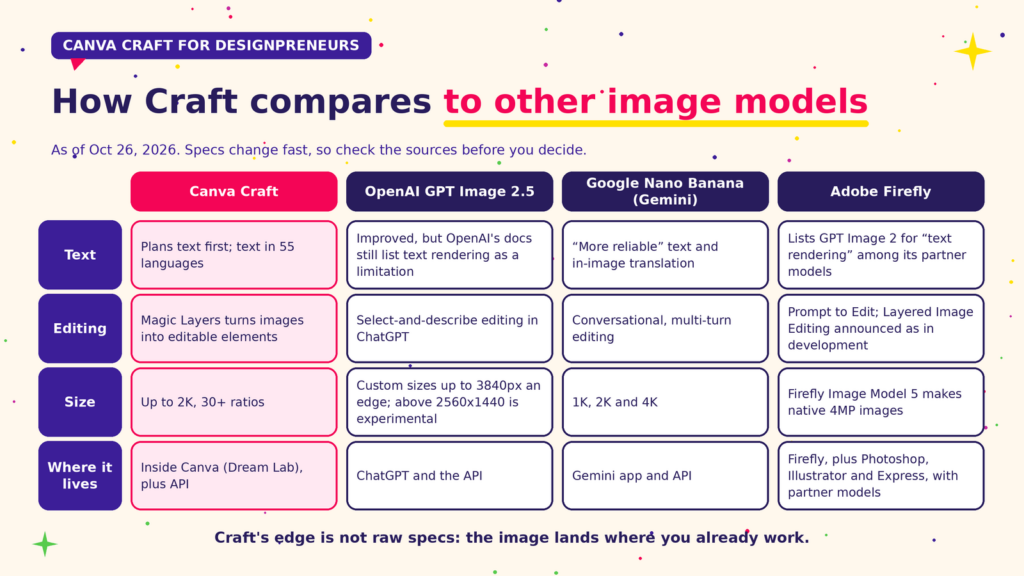
As of Oct 26, 2026. Specs change fast, so check the linked pages before you decide.
The leaderboard. Canva says Craft debuted fourth on DesignArena, a crowdsourced design leaderboard, behind three OpenAI models. DesignArena’s live board shifts as votes come in: a reading on Oct 24 had Craft fifth, behind OpenAI’s three models and Sourceful’s Riverflow 2.5 Pro, with Craft’s score based on far fewer votes than the leaders. Treat rankings as a rough guide, not a verdict.
| Canva Craft | OpenAI GPT Image 2.5 | Google Nano Banana (Gemini) | Adobe Firefly | |
|---|---|---|---|---|
| Text | Plans text first; text in 55 languages (Canva) | Improved, but OpenAI’s docs still list text rendering as a limitation (docs) | “More reliable” text and in-image translation (Google) | Lists GPT Image 2 for “text rendering” among its partner models (Adobe) |
| Editing | Magic Layers turns images into editable elements | Select-and-describe editing in ChatGPT (help) | Conversational, multi-turn editing (docs) | Prompt to Edit; Layered Image Editing was announced as in development (Adobe) |
| Size | Up to 2K, 30+ ratios | Custom sizes up to 3840px an edge; above 2560×1440 is experimental (docs) | 1K, 2K and 4K (docs) | Firefly Image Model 5 makes native 4MP images (Adobe) |
| Where it lives | Inside Canva (Dream Lab), plus API | ChatGPT and the API (OpenAI) | Gemini app and API | Firefly, plus Photoshop, Illustrator and Express, with partner models |
Where Craft’s edge is. Not raw specs. OpenAI and Google offer larger sizes, and OpenAI’s models currently sit at the top of the leaderboard. Craft’s edge is that the image lands where you already work: generate in Dream Lab, split it with Magic Layers, apply your Brand Kit, and ship from the same editor. For client social posts, that’s the part that saves time.
Two more to know. Ideogram positions itself around readable type, with an API and agent connections. Midjourney’s docs say text works best in the Latin alphabet and in short phrases, and point to its web Editor for fixing small glitches. We haven’t compared these two against Craft side by side.
The standard that matters. Whatever model you use, text on an image has to be spot on. Better rendering is not perfect rendering, so proof every word.
Where Craft fits for a designpreneur
- Social content and promos. Launch graphics, sale posts, event flyers and story backgrounds where text has to read correctly.
- Mood boards and lifestyle scenes. Show a client three directions, or a product in context, when there’s no photo budget.
- Multilingual campaigns. Prompting and rendering text in other languages saves a round trip.
How to try Canva Craft: a 6-step workflow
1. Open Dream Lab. From Canva’s home page, open Dream Lab. Craft is the default model.
2. Write a layout-style prompt. Describe it like a brief, not a vibe: subject, position, background, and the exact text. For example: “Flat-lay of a coffee cup on the left third, warm morning light, plenty of empty space on the right, headline text ‘Grand Opening Saturday’ at the top.”
3. Pick the aspect ratio up front. Choose the ratio for where the image will live, like a 9:16 story or a wide banner, instead of cropping later.
4. Check the details. Read every word of the text, then check element placement and emphasis. If something’s off, adjust the prompt rather than fixing it pixel by pixel.
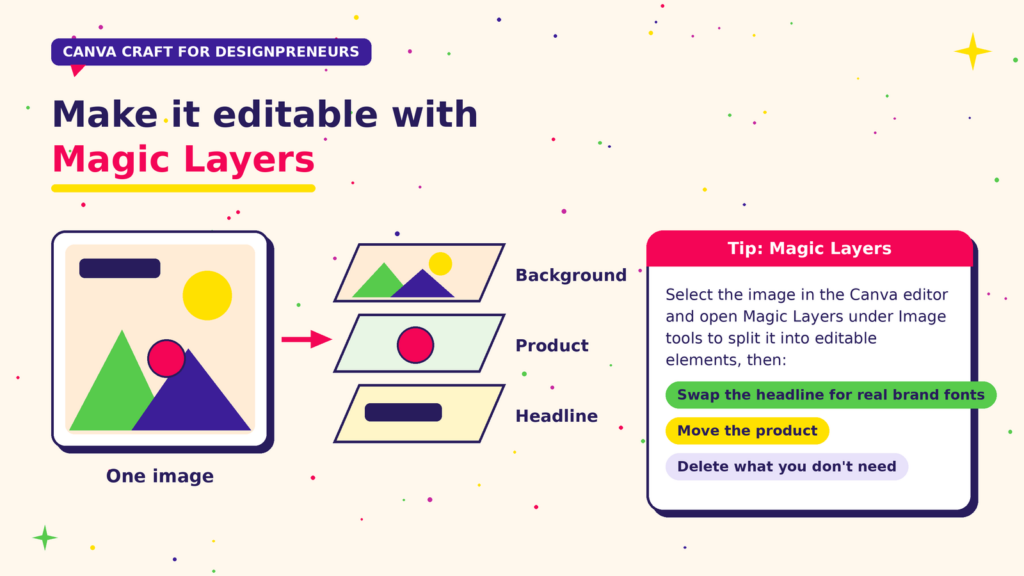
5. Make it editable with Magic Layers. Select the image in the Canva editor and open Magic Layers under Image tools to split it into editable elements, then swap the headline for real brand fonts, move the product, or delete what you don’t need.
6. Brand it and save it as a template. Apply your Brand Kit colors and fonts, add the client’s logo as a real element (not AI-drawn), and save the layout as a template so next month’s version takes minutes.
A few honest cautions
- Put real logos in by hand. Use the client’s actual logo file, not a generated look-alike.
- Proof every word. Canva itself says it’s still working on things like fine print and technical drawings.
- Check usage before you promise volume. Canva says some Dream Lab features count against your AI usage limit (Dream Lab help), but in our experience it doesn’t clearly spell out how many Craft generations each plan gets. Check your own plan before promising clients a number of images.
- Tell clients when AI was used if that’s part of your agreement with them.
How this plugs into your Designpreneurs toolkit
In The Designpreneur Toolkit, we argued the goal isn’t more tools, it’s a connected workflow. Craft fits at the “create” step: generate the draft visual, make it editable with Magic Layers, lock it to your Brand Kit, and turn it into a reusable template. If your design ends up on a printed product, VecSynIQ can take raster artwork the rest of the way to print-ready vectors.
Try it this week: pick one recurring post you make for a client, rebuild it with Craft and Magic Layers, and save it as a template.
Need a hand? Contact us for your Canva design projects or how to get your team started.
